- Download VirtualBox and the virtual image for your machine (Intel/AMD or Mac ARM) using the links provided.
- Install VirtualBox for your system (i.e. click on dmg image, use apt-get, …)
- Unpack the virtual image using tar (or other application), i.e.
- tar -xjvf nek-tutorial-x86_64-latest.tar.bz2 or
- tar -xjvf nek-tutorial-arm64-latest.tar.bz2
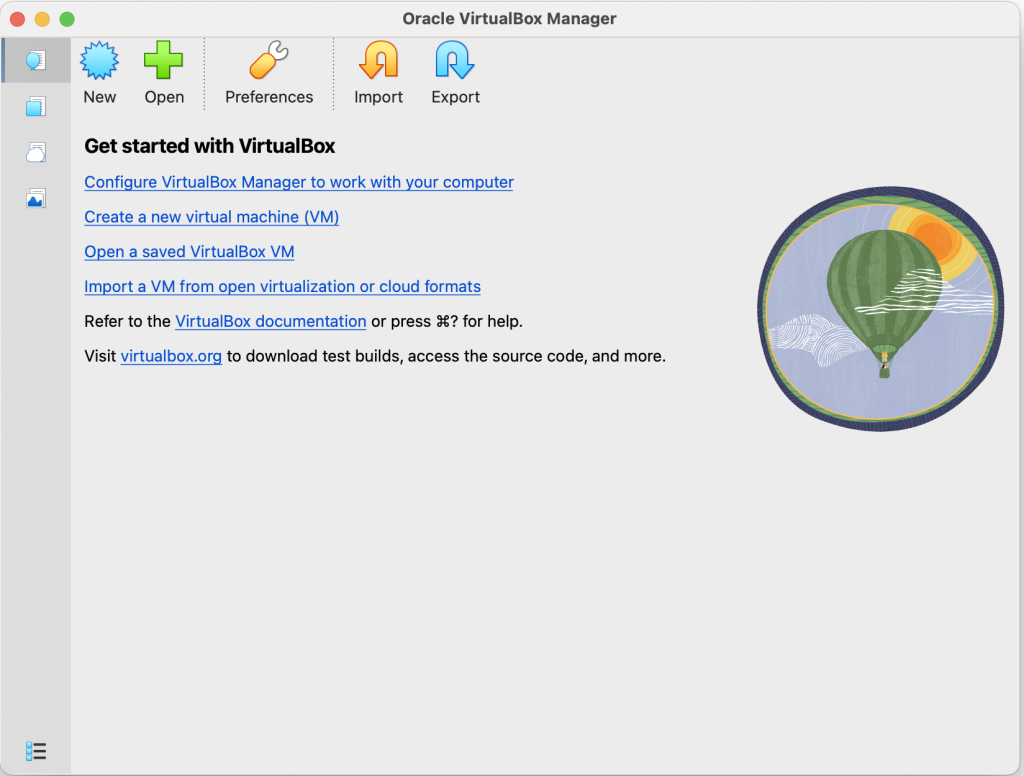
- Start VirtualBox
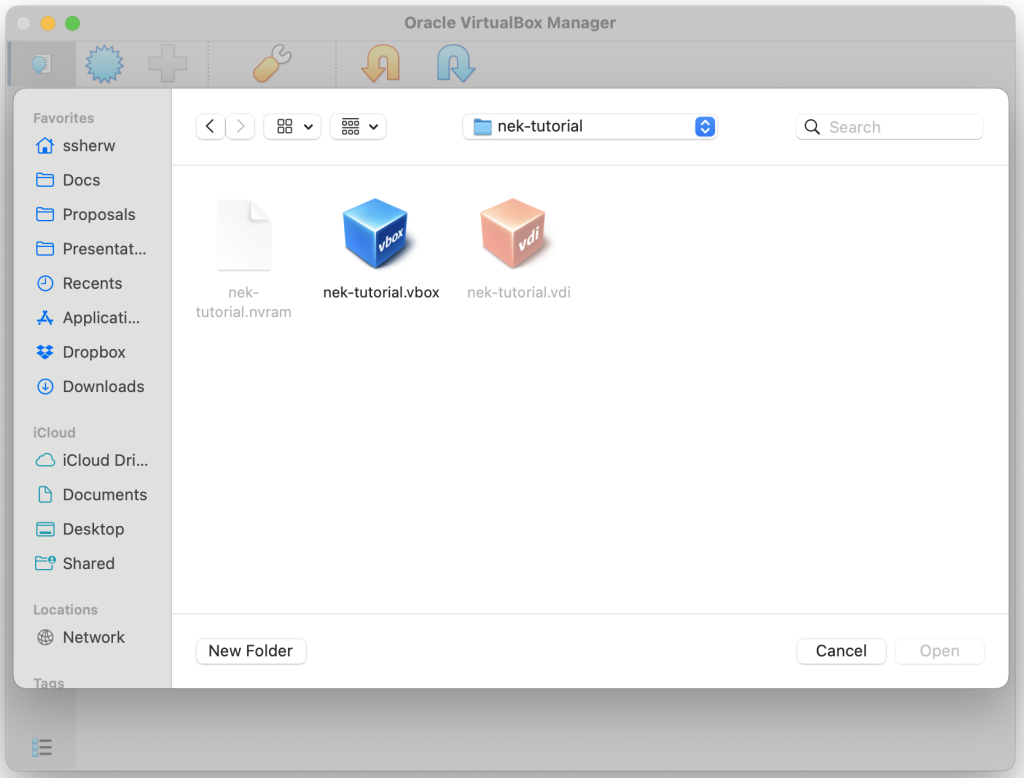
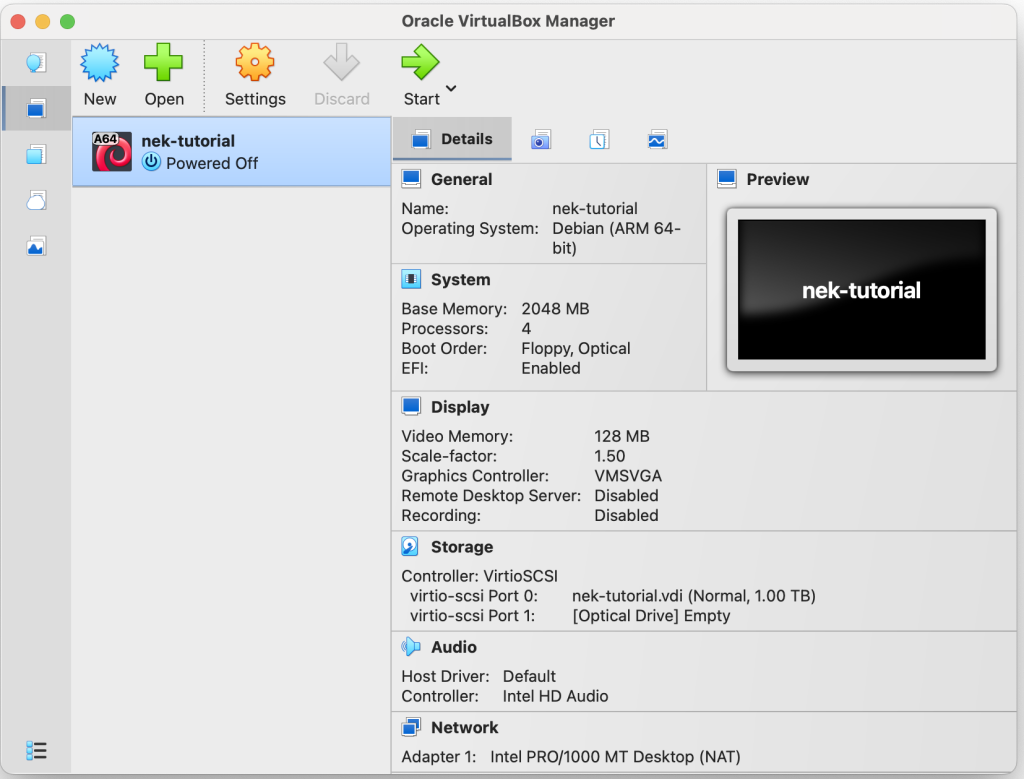
- Click on the Open (+) icon and go to the virtual image directory you have unpacked and click on nek-tutorial.vbox
- Start virtual image by double clicking the nek-tutorial image or pressing the start button
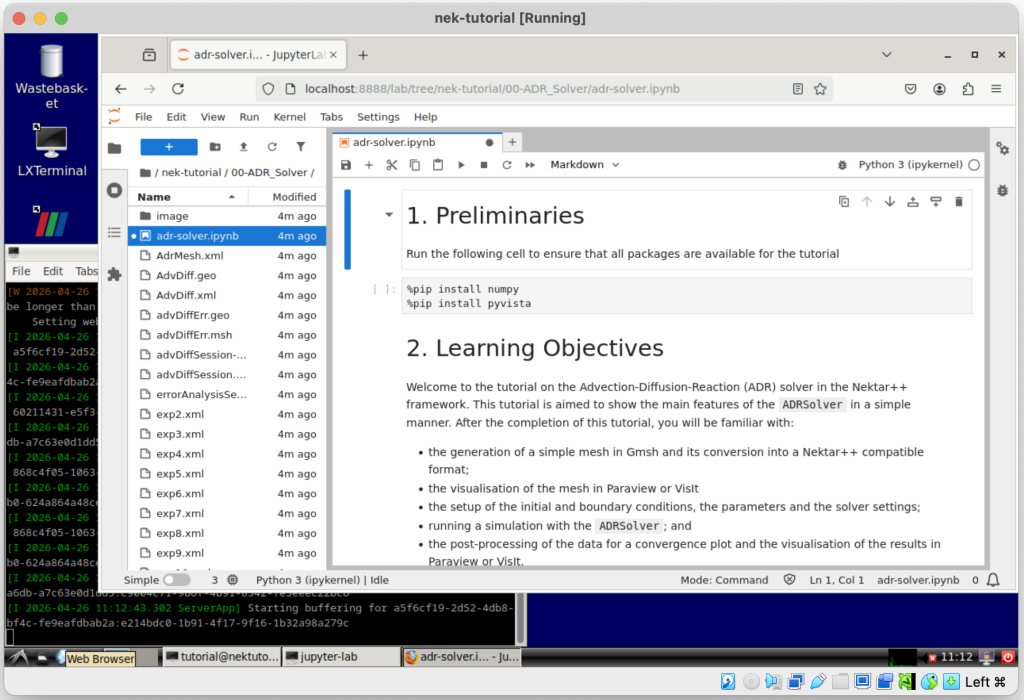
- A virtual machine is then started, this can take ~30 seconds to boot.
- Note the virtual machine can be resized by clicking on the top view->virtual Screen 1->Scale to xxx %
- This machine now has an installed version of Nektar++ running on your machine
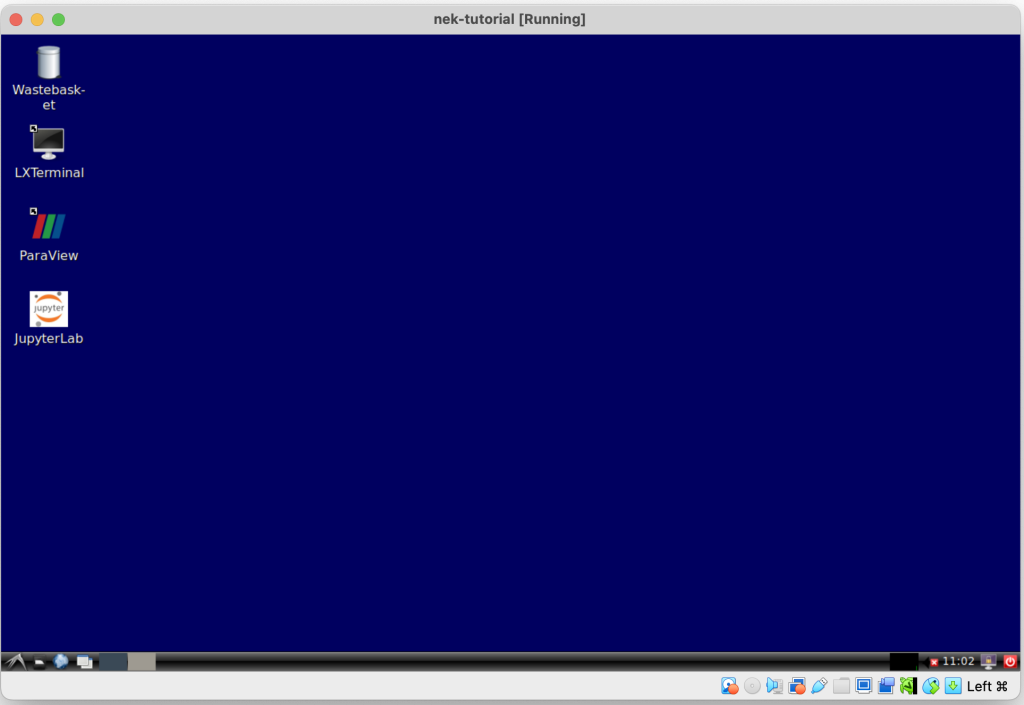
- Double click on the LXTerminal icon to start a terminal window
- Type “get-nek-tutorial” in the window and return to download Jupyter lab tutorials
- This will generate a directory nek-tutorial which can be seen by typing “ls” in the window
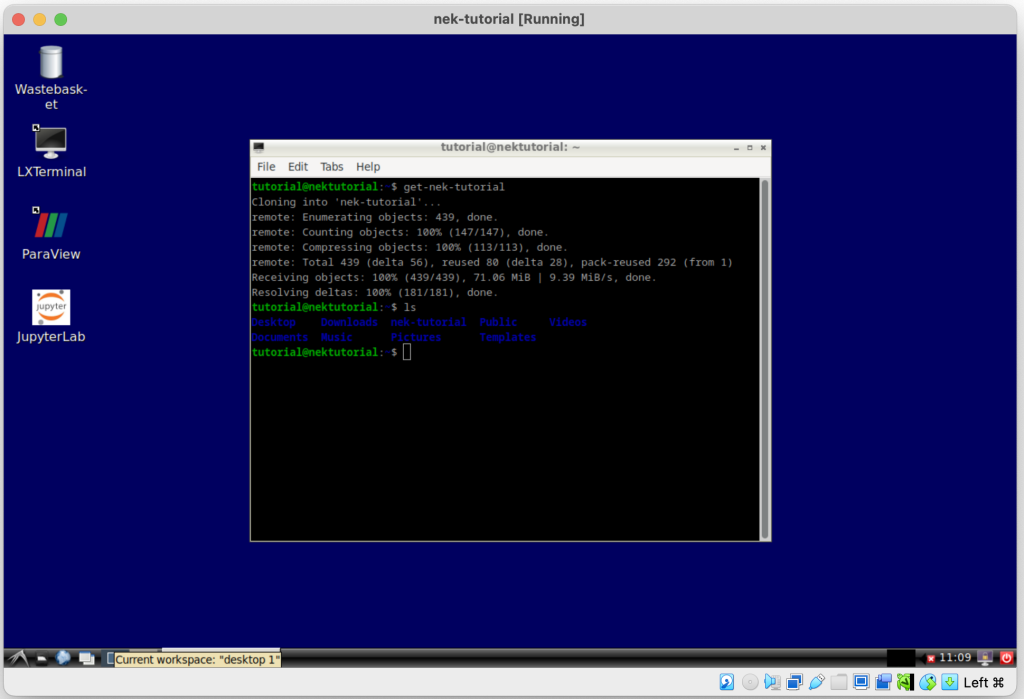
- Finally click on the JupyterLab icon and this will start the Jupyter tutorials